Adding Depth to Your Project
When using Unity, the Niantic Spatial SDK (NSDK) integrates seamlessly with Unity’s AR Foundation. This means your application can access depth data through Unity’s standard AR Occlusion Manager component.
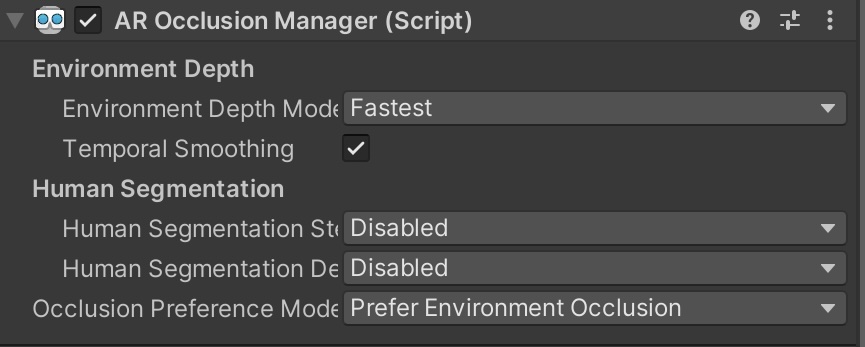
To enable depth in your scene, simply add an AROcclusionManager to your AR camera object. NSDK automatically provides depth data through this component when configured correctly.
While the AROcclusionManager interface mirrors that of AR Foundation, its configuration options behave slightly differently under NSDK:
- Environment Depth Mode — This parameter controls which NSDK neural network architecture is used for depth estimation:
- Medium: Uses Niantic’s in-house MultiDepth architecture for balanced accuracy and performance.
- Best: Uses a modified MultiDepth Anti-Flicker model that takes into account the previous frame’s depth map to improve temporal stability.
- Fastest: Uses a smaller, lightweight model optimized for speed, with potential trade-offs in accuracy.
- Temporal Smoothing — Not supported in NSDK. Temporal consistency is instead managed internally through the anti-flicker depth model when the Best mode is selected.
- Human Segmentation — This section is unused in NSDK. For segmentation features such as detecting humans or other object classes, refer to the Scene Segmentation feature in the Niantic SDK, which provides broader category support.
- Occlusion Preference Mode — In standard AR Foundation, this setting toggles between environment and human occlusion. In NSDK, it is simplified: use No Occlusion to disable depth-based occlusion entirely.
More Information
The NSDK sample project includes an example of running depth.
Also, see How to Convert a Screen Point to Real-World Position Using Depth for a guide of how to set up a project with depth.