How to Use Neural Network Model Preloading
Awareness features such as Meshing and Depth use neural network models to know how to draw each pixel in an AR session. To improve runtime performance, model preloading allows you to download model files ahead of time, frontloading the installation process and avoiding just-in-time loading delays that can negatively impact the user experience.
Prerequisites
- You will need a Unity project with Lightship AR enabled. For more information, see Installing ARDK 3.0.
Neural Network Performance Modes
Lightship awareness features support a range of performance modes, allowing developers to select for performance, quality, or a balanced mix. These modes are analogous to the Unity EnvironmentDepthMode values used in the XROcclusionSubsystem.
For example, Fast optimizes for faster processing time at the expense of quality, while Smooth takes more time to deliver the best graphics. Each mode has its own neural network model file that can be preloaded before using AR features. For developers who want to supply their own neural network model file, RegisterModel allows for overriding the predefined Lightship models.
To request a feature mode, specify the feature and mode before starting the awareness feature:
DownloadModel(DepthMode.Medium);
DownloadModel(SemanticsMode.Smooth);
See Runtime/Utilities/Preloading/Feature.cs for the definitive list of feature modes.
Preloading a Lightship Neural Network Model
To preload a neural network model file before starting an awareness feature:
- Determine which model you would like to preload based on your application's performance and quality needs.
- Decide when preloading will occur. Preloading can happen any time after AR Foundation has initialized the Lightship loader (when
XRGeneralSettings.Instance.Manager.isInitializationCompleteis true) and before awareness features have started. For example, if your AR script is aMonoBehaviour, preloading can happen duringStart().
Make sure there are no active AR Managers in the scene where you use preloading APIs. If an AR Manager is present, any associated models will download automatically.
Model preloading APIs are only available during runtime after a Lightship AR session has started. If a model is not preloaded, awareness features will automatically choose one when starting.
-
Set up a
Canvaswith UI Objects:- In the Hierarchy, right-click in the main scene, then open the UI menu and select Canvas.
- Repeat this process four more times to add two
Buttonand twoTextobjects. Customize their look in any way you want.
-
Create an empty
GameObjectin the scene where preloading should occur:- In the Hierarchy, right-click the scene, then select Create Empty. Name the new
GameObjectModelPreloader.
- In the Hierarchy, right-click the scene, then select Create Empty. Name the new
-
Add a new script component to the empty:
- Select ModelPreloader in the Hierarchy, then, in the Inspector, click Add Component and add a new script to it.
-
At the top of the script, add serialized fields for the UI Objects:
[SerializeField]
private Button _downloadButton;

[SerializeField]
private Button _clearButton;

[SerializeField]
private Text _progressPercentText;

[SerializeField]
private Text _statusText; -
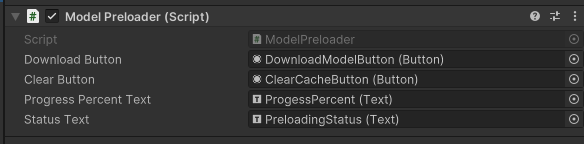
Attach the GameObjects to the script in the Inspector:
-
Create a private preloader field, set a model feature to download, and add a bool to keep track of the state:
- Instantiate the object with
ModelPreloaderFactoryin theStartmethod:
private IModelPreloader preloader;

private DepthMode _depthMode = DepthMode.Medium;
private bool _isDownloading = false;

private void Start()
{
    preloader = ModelPreloaderFactory.Create();

    if (null == preloader)
    {
        // Need to wait for XR to initialize before we can preload.
        // Defer preloader instantiation to a later function.
        return;
} - Instantiate the object with
-
Call
ExistsInCache()to check if the model already resides in the cache, then set the state of the scene.if (!preloader.ExistsInCache(_depthMode))
{
_statusText.text = $"{_depthMode} model not found in cache";
_progressPercentText.text = "0%";
_clearButton.interactable = false;
_downloadButton.interactable = true;
}
else
{
// The model is already in the cache. No download is required.
_statusText.text = $"{_depthMode} model found in cache";
_progressPercentText.text = "100%";
_clearButton.interactable = true;
_downloadButton.interactable = false;
} -
Create a
Downloadmethod to have the preloader download the model:private void DownloadModel()
{
preloader.DownloadModel(_depthMode);
_isDownloading = true;
_statusText.text = "Downloading model...";
_progressPercentText.text = "0%";
_clearButton.interactable = false;
_downloadButton.interactable = false;
} -
Add a
ClearCachemethod to delete the downloaded model:private void ClearCache()
{
preloader.ClearFromCache(_depthMode);
_statusText.text = $"{_depthMode} model cleared from cache";
_progressPercentText.text = "0%";
_clearButton.interactable = false;
_downloadButton.interactable = true;
} -
Attach
onClicklisteners to the buttons to call their corresponding methods:private void OnEnable()
{
_downloadButton.onClick.AddListener(DownloadModel);
_clearButton.onClick.AddListener(ClearCache);
}
private void OnDisable()
{
_downloadButton.onClick.RemoveListener(DownloadModel);
_clearButton.onClick.RemoveListener(ClearCache);
} -
If you want to display download progress to the user, periodically call
CurrentProgress(). Whenprogressis1.0, model preloading is complete. For example:private void Update()
{
if (!_isDownloading)
{
return;
}
var statusCode = preloader.CurrentProgress(_depthMode, out float progress);
if (Mathf.Approximately(progress, 1.0f))
{
// The download has completed successfully, or the model was already in the cache
_statusText.text = $"{_depthMode} model downloaded successfully";
_progressPercentText.text = "100%";
_clearButton.interactable = true;
_downloadButton.interactable = false;
_isDownloading = false;
return;
}
if (statusCode != PreloaderStatusCode.RequestInProgress)
{
// The download is not in progress
_statusText.text = $"Current status: {statusCode}";
_isDownloading = false;
return;
}
_progressPercentText.text = $"{progress * 100.0f}%";
} -
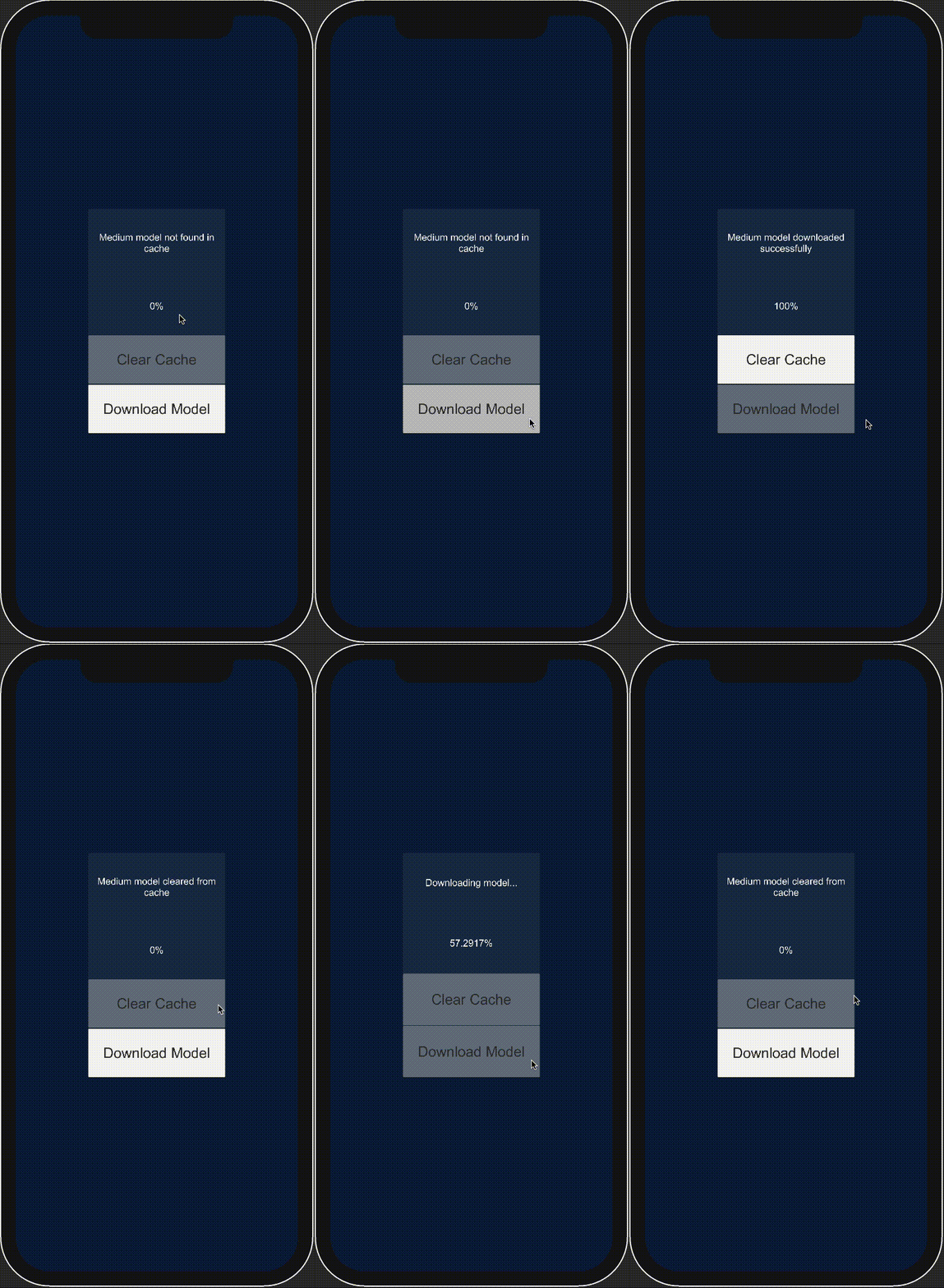
Test the scene in the Unity Editor and double-check the steps above if something doesn't work.
Full Example Model Preloading Script
Click here to expand the example script
using Niantic.Lightship.AR.Utilities.Preloading;
using UnityEngine;
using UnityEngine.UI;
public class ModelPreloader : MonoBehaviour
{
[SerializeField]
private Button _downloadButton;
[SerializeField]
private Button _clearButton;
[SerializeField]
private Text _progressPercentText;
[SerializeField]
private Text _statusText;
private IModelPreloader preloader;
private DepthMode _depthMode = DepthMode.Medium;
private bool _isDownloading = false;
private void Start()
{
preloader = ModelPreloaderFactory.Create();
if (null == preloader)
{
// Need to wait for XR to initialize before we can preload.
// Defer preloader instantiation to a later function.
return;
}
    if (!preloader.ExistsInCache(_depthMode))
    {
        _statusText.text = $"{_depthMode} model not found in cache";
        _progressPercentText.text = "0%";
        _clearButton.interactable = false;
        _downloadButton.interactable = true;
    }
    else
    {
        // The model is already in the cache. No download is required.
        _statusText.text = $"{_depthMode} model found in cache";
        _progressPercentText.text = "100%";
        _clearButton.interactable = true;
        _downloadButton.interactable = false;
    }
}
private void Update()
{
if (!_isDownloading)
{
return;
}
var statusCode = preloader.CurrentProgress(_depthMode, out float progress);
if (Mathf.Approximately(progress, 1.0f))
{
// The download has completed successfully, or the model was already in the cache
_statusText.text = $"{_depthMode} model downloaded successfully";
_progressPercentText.text = "100%";
_clearButton.interactable = true;
_downloadButton.interactable = false;
_isDownloading = false;
return;
}
if (statusCode != PreloaderStatusCode.RequestInProgress)
{
// The download is not in progress
_statusText.text = $"Current status: {statusCode}";
_isDownloading = false;
return;
}
_progressPercentText.text = $"{progress * 100.0f}%";
}
private void OnEnable()
{
_downloadButton.onClick.AddListener(DownloadModel);
_clearButton.onClick.AddListener(ClearCache);
}
private void OnDisable()
{
_downloadButton.onClick.RemoveListener(DownloadModel);
_clearButton.onClick.RemoveListener(ClearCache);
}
private void DownloadModel()
{
    preloader.DownloadModel(_depthMode);
    _isDownloading = true;
    _statusText.text = "Downloading model...";
    _progressPercentText.text = "0%";
    _clearButton.interactable = false;
    _downloadButton.interactable = false;
}
private void ClearCache()
{
    preloader.ClearFromCache(_depthMode);
    _statusText.text = $"{_depthMode} model cleared from cache";
    _progressPercentText.text = "0%";
    _clearButton.interactable = false;
    _downloadButton.interactable = true;
}
}
Registering a Local Model File
To avoid performing the expensive download process when starting an AR session, you may want to download the model files beforehand. To support this, ModelPreloader allows you to register local model files for any feature mode.
To register a local model file with ARDK:
- Ensure that the model file is in a location that your application can access.
- Create an empty
GameObjectin the scene where preloading should occur:- In the Hierarchy, right-click the scene, then select Create Empty. Name the new
GameObjectModelRegister.
- In the Hierarchy, right-click the scene, then select Create Empty. Name the new
- Add a new script component to the empty:
- Select the empty
GameObjectin the Hierarchy, then, in the Inspector, click Add Component, then add a new script.
- Select the empty
- Determine which model you would like to preload based on your application's performance and quality needs.
- Decide when preloading will occur. Preloading can happen any time after AR Foundation has initialized the Lightship loader (when
XRGeneralSettings.Instance.Manager.isInitializationCompleteis true) and before awareness features have started. For example, if your AR script is aMonoBehaviour, preloading can happen duringStart(). - If an ARManager is present, any required models will automatically start to download when
OnEnableis called.
Registering a model for a feature mode will override that model for the rest of the AR session. The feature mode will be reset to default after the AR session ends.
-
Instantiate a
ModelPreloaderobject withModelPreloaderFactory:private bool TryInitializePreloader()
{
IModelPreloader preloader = ModelPreloaderFactory.Create();
if (null == preloader)
{
// Need to wait for XR to initialize before we can preload.
return false;
}
} -
Call
RegisterModel(Feature, FeatureMode, filepath)to register the model with ARDK. This file must be accessible by the application and must remain in place for the duration of the AR session.
var statusCode = preloader.RegisterModel(DepthMode.Medium, "/example/path/to/model_file");
if (statusCode is PreloaderStatusCode.Success or
                              PreloaderStatusCode.RequestInProgress or
                              PreloaderStatusCode.FileExistsInCache)
{
    // The model is now registered to the cache, or the model was already in the cache.
    // This will be the model used for Lightship's EnvironmentDepthMode.Medium moving forward.
}
More Information
Expanded Preloading sample with Multiple Model Downloads and Progress Bars:
using System;
using System.Collections.Generic;
using System.Linq;
using Niantic.Lightship.AR.Utilities.Preloading;

using UnityEngine;
using UnityEngine.Serialization;
using UnityEngine.UI;
using UnityEngine.XR.Management;

public class PreloaderTestManager : MonoBehaviour
{
    [SerializeField]
    private Button _depthButton;

    [SerializeField]
    private Dropdown _depthDropdown;

    [SerializeField]
    private Button _semanticsButton;

    [SerializeField]
    private Dropdown _semanticsDropdown;

    [SerializeField]
    private Text _depthStatusText;

    [SerializeField]
    private Text _semanticsStatusText;

    [SerializeField]
    private Button _clearCacheButton;

    [SerializeField]
    private Text _preloadStatusText;

    [SerializeField]
    private Slider _percentageSlider;

    [SerializeField]
    private Text _percentageText;

    [SerializeField]
    private Text _cacheStatusText;

    [SerializeField]
    private string _localModelPath;

    private IModelPreloader _preloader;

    private DepthMode _depthMode;
    private SemanticsMode _semanticsMode;

    private void Start()
    {
        TryInitializePreloader();
        InitializeDropdownNames<DepthMode>(_depthDropdown);
        InitializeDropdownNames<SemanticsMode>(_semanticsDropdown);
    }

    private void OnDisable()
    {
        _preloader?.Dispose();
        _preloader = null;
    }

    private void InitializeDropdownNames<T>(Dropdown dropdown)
    {
        // Initialize the feature mode names in the dropdown menu.
        SetFeatureModeNames<T>(dropdown);
        dropdown.value = dropdown.options.Select(option => option.text).ToList().IndexOf("Medium");
    }

    private void SetFeatureModeNames<T>(Dropdown dropdown)
    {
        List<string> modeNames = new();
        foreach (var i in Enum.GetValues(typeof(T)))
        {
            var modeName = Enum.GetName(typeof(T), i);
            if (modeName != "Unspecified" && modeName != "Custom")
                modeNames.Add(modeName);
        }
        dropdown.AddOptions(modeNames);
    }

    private void Update()
    {
        if (_preloader == null && !TryInitializePreloader())
            return;

        UpdateDownloadProgress();
        UpdateCacheStatusText();
    }

    private bool TryInitializePreloader()
    {
        if (!XRGeneralSettings.Instance.Manager.isInitializationComplete)
        {
            // Need to wait for XR to initialize before we can preload
            return false;
        }

        _depthMode = DepthMode.Medium;
        _semanticsMode = SemanticsMode.Medium;

        _preloader = ModelPreloaderFactory.Create();

        if (null == _preloader)
        {
            // Need to wait for XR to initialize before we can preload
            return false;
        }

        _depthButton.onClick.AddListener
        (
            () =>
            {
                _depthMode = ParseFeatureMode<DepthMode>(_depthDropdown);
                PreloaderStatusCode result;

                if (_localModelPath.Length > 0)
                {
                    result =  _preloader.RegisterModel(_depthMode, _localModelPath);
                    _preloadStatusText.text = "Depth file registration: " + (IsError(result) ? "failed" : "success");
                }
                else
                {
                    result = _preloader.DownloadModel(_depthMode);
                    _preloadStatusText.text = IsError(result) ? "Depth download failed to start" : "Depth download starting";
                }
            }
        );

        _semanticsButton.onClick.AddListener
        (
            () =>
            {
                _semanticsMode = ParseFeatureMode<SemanticsMode>(_semanticsDropdown);
                PreloaderStatusCode result;

                if (_localModelPath.Length > 0)
                {
                    result =  _preloader.RegisterModel(_semanticsMode, _localModelPath);
                    _preloadStatusText.text = "Semantics file registration: " + (IsError(result) ? "failed" : "success");
                }
                else
                {
                    result = _preloader.DownloadModel(_semanticsMode);
                    _preloadStatusText.text = IsError(result) ? "Semantic segmentation download failed to start" : "Semantic segmentation download starting";
                }
            }
        );

        _clearCacheButton.onClick.AddListener
        (
            () =>
            {
                int successes = 0;
                if (_preloader.ClearFromCache(_depthMode))
                    successes++;

                if (_preloader.ClearFromCache(_semanticsMode))
                    successes++;

                _preloadStatusText.text = "Clear cache: " + successes + " successes";
            }
        );

        _depthDropdown.onValueChanged.AddListener
        (
            (int val) =>
            {
                var mode = val + (int) DepthMode.Fast; // We skip the 'unspecified' and 'custom' modes
                _depthMode = (DepthMode) mode;
            }
        );

        _semanticsDropdown.onValueChanged.AddListener
        (
            (int val) =>
            {
                var mode = val + (int) SemanticsMode.Fast; // We skip the 'unspecified' and 'custom' modes
                _semanticsMode = (SemanticsMode) mode;
            }
        );

        return true;
    }

    private static T ParseFeatureMode<T>(Dropdown dropdown)
    {
        var modeName = dropdown.options[dropdown.value].text;

        T mode = (T) Enum.Parse(typeof(T), modeName);
        return mode;
    }

    private void UpdateDownloadProgress()
    {
        // Display the progress of the feature modes that are selected with the dropdown menus
        var depthStatus = _preloader.CurrentProgress(_depthMode, out var selectedDepthProgress);
        if (IsError(depthStatus))
        {
            if (depthStatus == PreloaderStatusCode.RequestNotFound)
            {
                _depthStatusText.text = "0%";
            }
            else
            {
                _depthStatusText.text = "Failure: " + depthStatus;
                _preloadStatusText.text = "Download failure";
            }
        }
        else
        {
            _depthStatusText.text = (selectedDepthProgress * 100).ToString("0") + "%";
        }

        var semanticsStatus = _preloader.CurrentProgress(_semanticsMode, out var selectedSemanticsProgress);
        if (IsError(semanticsStatus))
        {
            if (semanticsStatus == PreloaderStatusCode.RequestNotFound)
            {
                _semanticsStatusText.text = "0%";
            }
            else
            {
                _semanticsStatusText.text = "Failure: " + semanticsStatus;
                _preloadStatusText.text = "Download failure";
            }
        }
        else
        {
            _semanticsStatusText.text = (selectedSemanticsProgress * 100).ToString("0") + "%";
        }

        // Summarize their download progress
        float combinedProgress = 0, activeDownloads = 0;
        if (selectedDepthProgress > 0 && selectedDepthProgress < 1)
        {
            combinedProgress += selectedDepthProgress;
            activeDownloads++;
        }

        if (selectedSemanticsProgress > 0 && selectedSemanticsProgress < 1)
        {
            combinedProgress += selectedSemanticsProgress;
            activeDownloads++;
        }

        float totalProgress = activeDownloads > 0 ? combinedProgress / activeDownloads : 0;
        _percentageText.text = (totalProgress * 100).ToString("0") + "%";
        _percentageSlider.value = totalProgress;
    }

    private void UpdateCacheStatusText()
    {
        // Cache status
        List<string> modeNames = new();
        DepthMode depthMode = new DepthMode();
        SemanticsMode semanticsMode = new SemanticsMode();
        string cacheStatusText = "Model files preloaded in cache: " + System.Environment.NewLine;

        // Update the cache status for all depth modes
        foreach (DepthMode i in Enum.GetValues(typeof(DepthMode)))
        {
            if (i == DepthMode.Unspecified || i == DepthMode.Custom)
                continue;

            depthMode = i;
            var present = _preloader.ExistsInCache(depthMode);

            if (present)
                modeNames.Add(Enum.GetName(typeof(DepthMode), i) + " Depth");
        }

        // Update the cache status for all semantics modes
        foreach (SemanticsMode i in Enum.GetValues(typeof(SemanticsMode)))
        {
            if (i == SemanticsMode.Unspecified || i == SemanticsMode.Custom)
                continue;

            semanticsMode = i;
            var present = _preloader.ExistsInCache(semanticsMode);

            if (present)
                modeNames.Add(Enum.GetName(typeof(SemanticsMode), i) + " Semantics");
        }


        // Summarize cache status
        for (int i = 0; i < modeNames.Count; i++)
        {
            cacheStatusText += modeNames[i] + (i < modeNames.Count - 1 ? ", " : "");
        }

        _cacheStatusText.text = cacheStatusText;
    }

    private static bool IsError(PreloaderStatusCode statusCode)
    {
        if (statusCode is PreloaderStatusCode.Success or
                            PreloaderStatusCode.RequestInProgress or
                            PreloaderStatusCode.FileExistsInCache)
            return false;

        return true;
    }
}